The short answer
Windows 11 has recording in the Snipping Tool, and macOS has it under Shift+Command+5; both are free and add no watermark. To record from the browser with your voice, tab sound and an optional camera bubble, a recorder extension such as ClarShot does it with no time limit and saves a normal video file on your computer.
On a phone? The ClarShot steps below are for a computer: ClarShot runs in Chrome and Edge on Windows, Mac, Linux and ChromeOS.
Without installing anything
Every major desktop system can already record the screen for free, with no watermark. They differ in what they can record and where the file goes.
Windows 11: the Snipping Tool
Open the Snipping Tool, switch it from the camera to the video camera, choose New, and drag over the part of the screen you want. Press Start, and Stop when you are done. The recording opens in the Snipping Tool, where you can save it as an MP4 file.
Windows: the Xbox Game Bar
Press Win G and use the Capture widget to record the app you are in. It is made for games and records one app window at a time: it cannot record the desktop or File Explorer. Recordings go to the Captures folder inside Videos, and each one stops at a maximum length you can set in Windows Settings.
macOS: Shift+Command+5
Press Shift Command 5 and choose Record Entire Screen or Record Selected Portion. Under Options you can pick a microphone. It records your voice, but not the sound your Mac plays, such as the audio of a video in the browser. The file is saved as a MOV on the desktop by default.
ChromeOS: Screen capture
Open Quick Settings, choose Screen capture, then switch to video and pick the full screen, a window or a part of it.
Where the built-in tools fall short
- They record the screen or a window, not one browser tab while you switch between others.
- None of them adds your camera in a corner, which helps when you walk someone through a problem.
- The sound of a tab is missing on a Mac, and each system names and saves things differently.
With ClarShot
ClarShot records from the browser, on any system where the browser runs. There is no time limit and no watermark, the recording is not uploaded anywhere, and you get a normal video file.
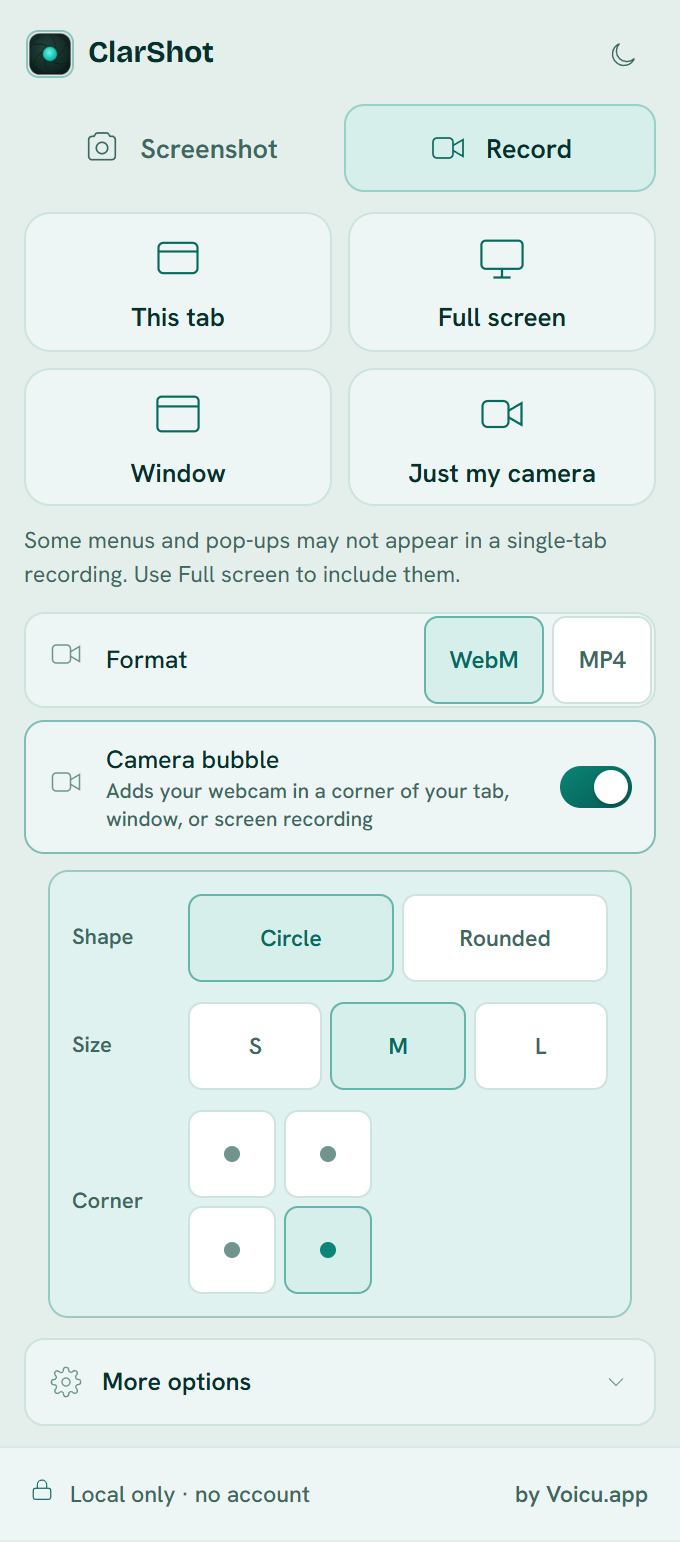
- Click the ClarShot icon in the toolbar and open the Record tab. If you do not see it, click the puzzle piece (Extensions) next to the address bar and pin ClarShot.
- Choose what to record: This tab, Window, Full screen, or Just my camera. For a window or the full screen, the browser asks you to pick one in its sharing window.
- Pick the format, WebM or MP4. MP4 is offered when your device can record it. Not sure? Read WebM or MP4.
- Turn on Camera bubble if you want your webcam in a corner, and choose its shape, size and corner.
- Under More options, turn on Microphone for your voice and Tab / system audio for the sound of the page.
- Record. Stop from the small control bar, then download the video.
Alt Shift S starts a recording from the keyboard. If a recording is not downloaded, for example because its window closed, it stays in the Record tab, marked as not saved, for 7 days on your device.
Common problems
The recording has no sound
Check that Microphone or Tab / system audio is on in More options, and that the browser is allowed to use your microphone. When you share a window or the screen, the browser's sharing window may also offer to share audio: tick it. The support page has the full checklist.
A menu or a pop-up is missing from the video
When you record a single tab, the browser records the page only. Native menus, such as a select list or a right-click menu, and pop-up windows may not appear. Record the Full screen to include them.
The file will not open in an app
Some apps and sites take MP4 only. Record in MP4 if your device offers it, or convert the WebM file with a free tool, as the format guide explains.
How do I send a long recording?
Send it as a file through a drive or a chat app that keeps documents as they are, so it is not shrunk like a photo. ClarShot has no share links, because nothing is uploaded.
Vivaldi, Arc and most other browsers are built on Chrome, so the Chrome version works there too.
Add to ChromeClarShot works in Chrome and Edge on a computer, not on phones. Send yourself the link and open it there.
Related guides
- WebM or MP4: which format for a screen recording?What the difference between WebM and MP4 means for a screen recording, which one to pick for where it is going, and how to convert one to the other.
- How to write a bug report with screenshots and a recordingA bug report developers can act on: a clear title, the steps, what you expected, and screenshots or a short recording. With a template you can copy.