The short answer
Press Ctrl+Shift+S in Microsoft Edge and choose Capture full page: Edge saves the whole page as one image. When a page has sticky headers, images that load as you scroll, or private data you need to cover before you share, a capture extension such as ClarShot handles those cases on your device.
On a phone? The ClarShot steps below are for a computer: ClarShot runs in Chrome and Edge on Windows, Mac, Linux and ChromeOS.
Without installing anything
Edge's built-in screenshot tool
Microsoft Edge has its own screenshot tool. Recent versions call it Screenshot in the menus; older ones call it Web capture. It works the same way:
- Open the page you want to capture.
- Press Ctrl Shift S, or right-click an empty part of the page and choose the screenshot option.
- Choose Capture full page. Edge captures the whole page, including the parts you would have to scroll to see.
- Draw or highlight on it if you need to, then copy it or save it.
For a quick capture of an ordinary page, this is often all you need. Microsoft notes that the tool's features can change and can vary by region.
The DevTools command, for developers
Edge and Chrome share the same developer tools, and they include a full-page screenshot command. Press F12, then Ctrl Shift P (Cmd Shift P on a Mac), type screenshot, and choose Capture full size screenshot. The browser saves a PNG of the whole page to your Downloads folder. There is no editor: what you get is the raw image.
Where the built-in tools fall short
Full-page capture is harder than it looks, and a few kinds of pages trip up simple tools:
- Sticky headers and chat buttons that follow you as you scroll can appear several times in the image, once for every screen the tool stitched together.
- Images that load only as you scroll can come out blank if the tool captures a part of the page before its images arrived.
- A panel that scrolls on its own, such as a chat, an inbox or a long table inside a dashboard, is captured only as far as you can see it. The page scrolls, the panel does not. There is a separate guide for that case.
- Private data in the capture has to be dealt with before you send it. A pen or a highlighter does not hide text; you need an opaque block that replaces the pixels. See how to hide private information in a screenshot.
With ClarShot
ClarShot is a free extension for Chrome and Edge that takes full-page screenshots and keeps them on your device. It makes no network requests, so the capture is never uploaded anywhere.
- Add ClarShot to Edge from Microsoft Edge Add-ons. It is free and asks for no account.
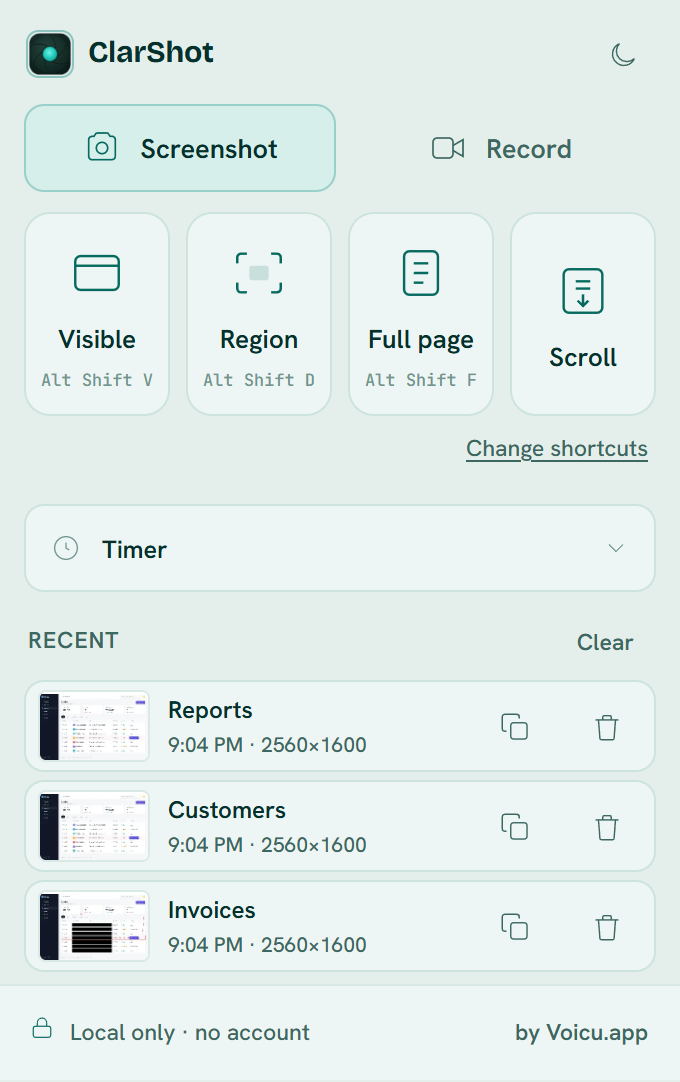
- On the page, press Alt Shift F, or click the ClarShot icon in the toolbar and choose Full page. If you do not see it, click the puzzle piece (Extensions) next to the address bar and pin ClarShot.
- ClarShot scrolls the page for you. It handles sticky headers and images that load as you scroll, and on a very long page you can stop early and keep what it captured so far.
- The capture opens in the editor a moment later. Add arrows, boxes or step numbers, and cover anything private with Solid.
- Download it as PNG, JPEG, WebP or PDF, or copy it and paste it into an email or a chat.
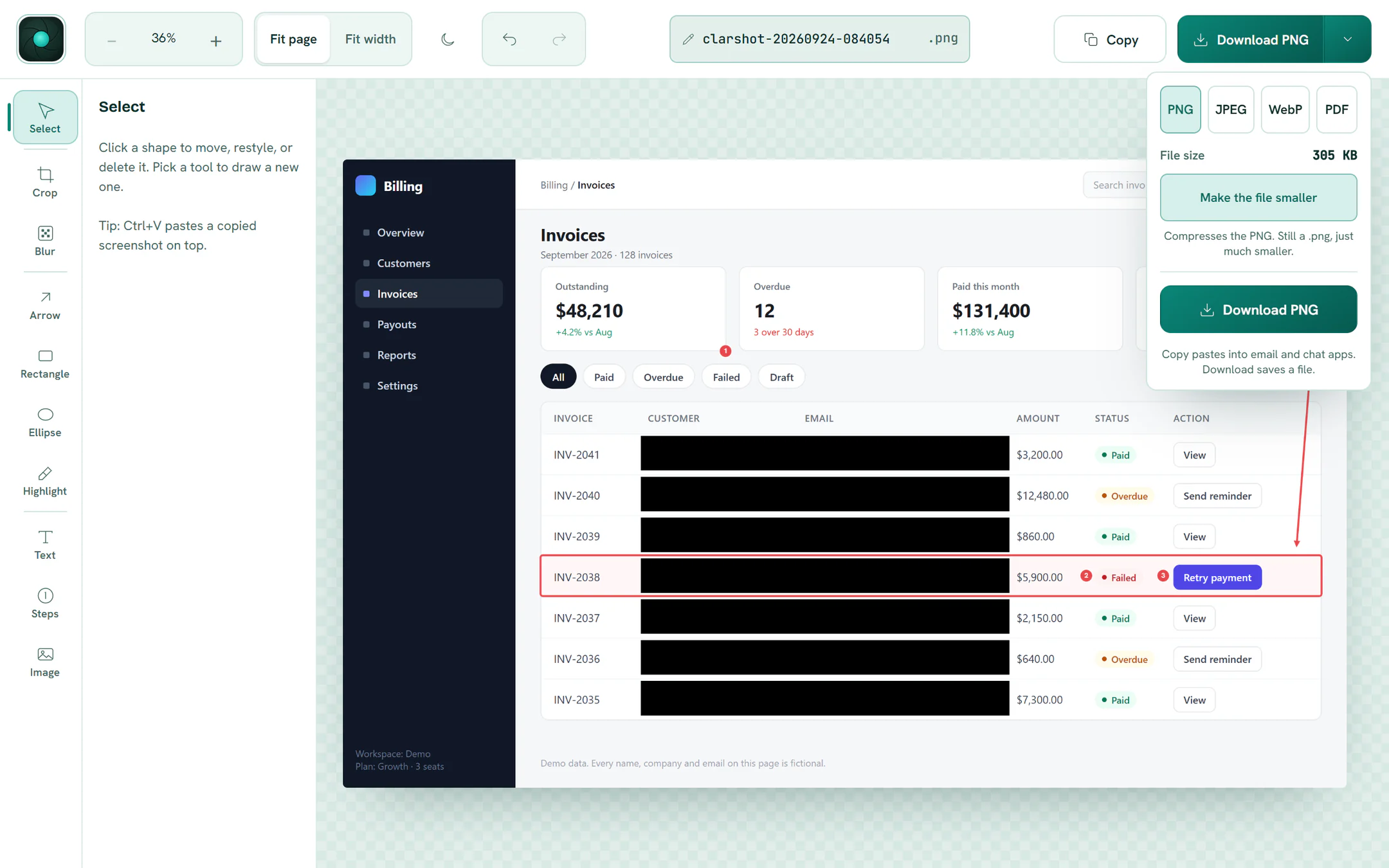
A long page can go out as a PDF split into A4 or Letter pages, portrait or landscape, or as one long page. The editor shows how many pages it will make before you download.
Common problems
Part of the page is blank where images should be
The page loads its images only when they scroll into view. With the built-in tools, scroll to the bottom of the page once, then back to the top, and capture again. ClarShot takes care of this as it scrolls.
The header appears several times
The header is sticky: it stays on screen as the page scrolls, so a tool that stitches screens together can catch it on every one. ClarShot's full page capture handles sticky headers as it scrolls.
I only need part of the page
Capture a selected area instead: Ctrl Shift S then Capture area in Edge, or Alt Shift D in ClarShot, and drag over what matters.
Nothing happens on a new tab, Settings or the store
Browsers do not let extensions capture their own pages, such as a new tab, Settings or the add-on store. Open a regular web page instead. A PDF or a file on your computer needs one setting first; the support page shows where it is.
Vivaldi, Arc and most other browsers are built on Chrome, so the Chrome version works there too.
Add to ChromeClarShot works in Chrome and Edge on a computer, not on phones. Send yourself the link and open it there.
Related guides
- How to hide private information in a screenshot, and why blur is not enoughBlur and pixelation can be reversed. How to cover names, emails and numbers in a screenshot so nothing can be recovered, with a live demo you can try.
- How to screenshot a scrolling chat, feed or long table in one imageWhy a full-page screenshot stops at the edge of a chat or an inbox, and how to capture a panel that scrolls on its own as one tall image.