The short answer
Cover it with a solid box you cannot see through, not blur or pixelation, then save it as a new PNG or JPEG. Blur and pixelation leave enough behind for free tools to read the text back. A PDF or an editor's own file can keep the original under your box, so send a plain image.
On a phone? The ClarShot steps below are for a computer: ClarShot runs in Chrome and Edge on Windows, Mac, Linux and ChromeOS.
Why blur and pixelate are not enough
Blur and pixelate do not remove text. They average it. Each block of a pixelated area is the average colour of the pixels that were underneath, so the block still depends on exactly what was written there.
That is enough to get it back. If someone can guess the font and the size, which a screenshot of a known app usually gives away, they can draw every likely word or number the same way, pixelate each one the same way, and keep the one whose blocks match. Security researchers have published tools that do exactly this: Bishop Fox released Unredacter in 2022, after an earlier tool called Depix recovered passwords from pixelated screenshots. Their conclusion is the same as ours: to hide text, use an opaque block.
Try it yourself
The demo below runs in this page and has two steps. In "1. Cover it", drag over the table. In "2. Try to break it", your browser hides a random 4-digit code and tries all 10,000 possibilities. Pixelate and blur give it away within seconds. Solid does not.
Drag over the demo table to cover what should stay private, then download the PNG. Every name and email in it is fictional.
We hid a random 4-digit code. Press "Try to recover it" and your browser guesses it by testing all 10,000 codes. Then pick Solid and try again.
Your browser will try all 10,000 codes, in this tab. Nothing is sent.
Without installing anything
Any image editor can hide text safely, as long as you do three things:
- Use a filled rectangle, not a blur. Draw an opaque box in a solid colour over the text. Black is common; any solid colour works if it is fully opaque.
- Export a new flat image. Save as a new PNG or JPEG. Formats that keep layers or annotations, such as an editor's own project format or a PDF with a comment box on top, can keep the original under your box, where anyone can move it aside.
- Keep your tools up to date. In 2023, bugs in two widely used screenshot editors, one on phones and one on desktops, left the uncropped original inside edited images saved over the old file. Saving to a new file and updating the editor avoids this kind of problem.
Not sure about a file you already have? Our free screenshot privacy check looks for data after the end of the picture, location and author fields, and pixelated areas, in your browser, without uploading the image.
With ClarShot
ClarShot's editor has three ways to hide a region: Solid, Blur and Pixelate. Solid is the default for new regions, and it is the only irreversible one.
- Capture the page or the area you need.
- In the editor, choose the hide tool (its button says Blur). It covers with Solid unless you change it.
- Drag over each name, email or number. Crop afterwards if you want a smaller image.
- Download or copy. The block is burned into the exported file: it is pixels, not a layer on top.
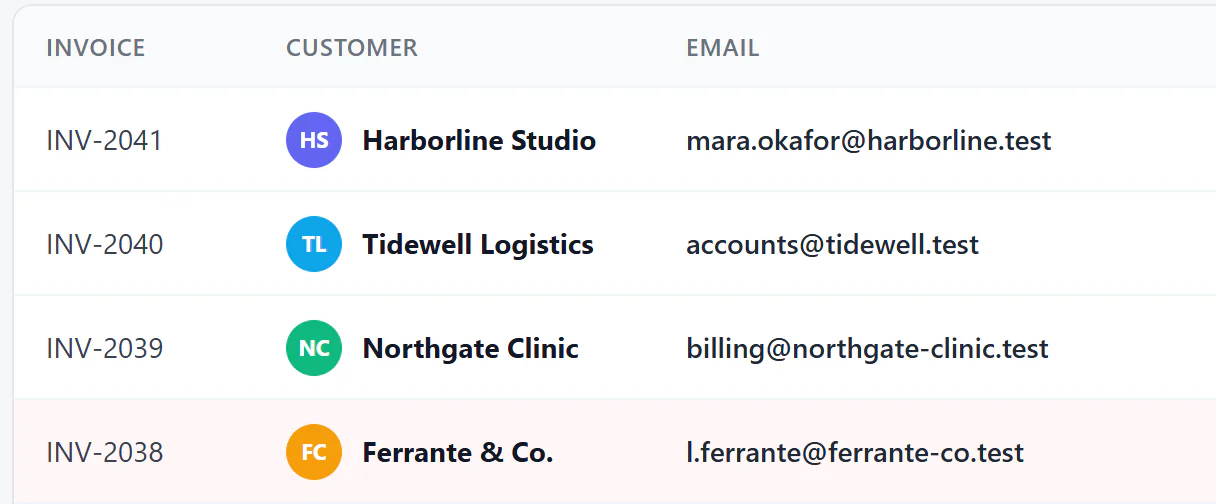
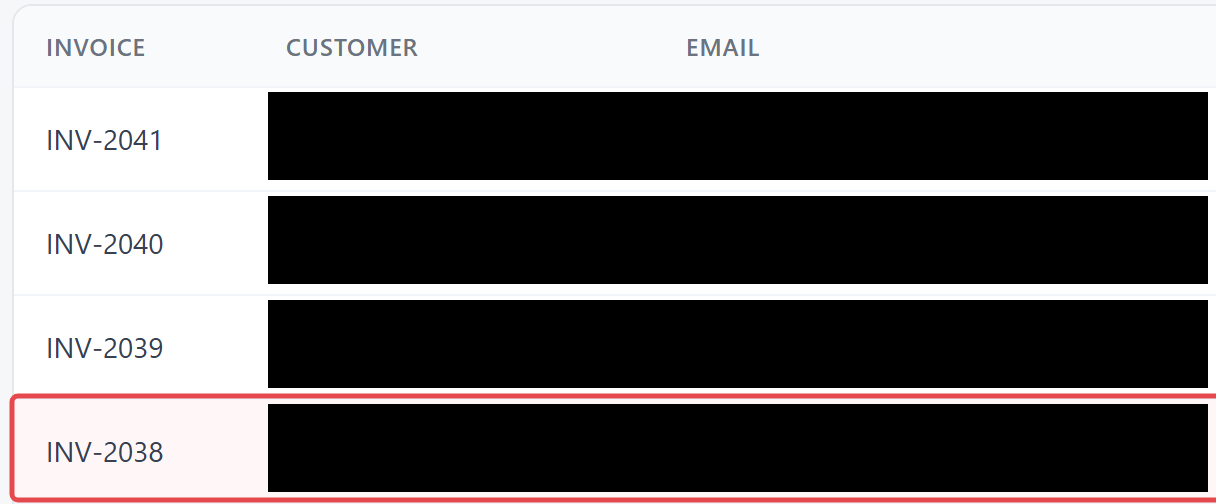
A blur or pixelate box drawn on top of a Solid box stays black in the export, so a later edit cannot bring the text back. And since ClarShot makes no network requests, the uncovered original is never sent anywhere while you work on it.
A checklist before you share
- Names, email addresses and phone numbers, including in sidebars and avatars.
- Card numbers, IBANs, amounts and order or invoice numbers.
- Passwords, API keys, tokens and anything that looks like a long random string.
- The address bar and the tab titles, which often carry names or IDs.
- Notifications and message previews that happened to be on screen.
Common questions
Is a black box always safe?
It is safe when it is part of the image itself, in a flat PNG or JPEG. It is not safe when it is a shape on top of the original in a document that keeps both, such as a PDF with an annotation box.
Is blur fine for anything?
For making something less noticeable, yes. For anything that must not be read, no. Treat blur and pixelate as cosmetic.
Can ClarShot find private data for me?
Not yet. A feature called Find, which will point out email addresses, phone numbers, card numbers and IBANs for you to review, is coming, and it will be free. Today you cover them yourself with Solid.
Vivaldi, Arc and most other browsers are built on Chrome, so the Chrome version works there too.
Add to ChromeClarShot works in Chrome and Edge on a computer, not on phones. Send yourself the link and open it there.
Related guides
- How to take a full-page screenshot in Microsoft EdgeCapture a whole web page in Microsoft Edge as one image: the built-in tool, where it falls short, and how ClarShot handles the rest, on your device.
- How to screenshot a scrolling chat, feed or long table in one imageWhy a full-page screenshot stops at the edge of a chat or an inbox, and how to capture a panel that scrolls on its own as one tall image.