The short answer
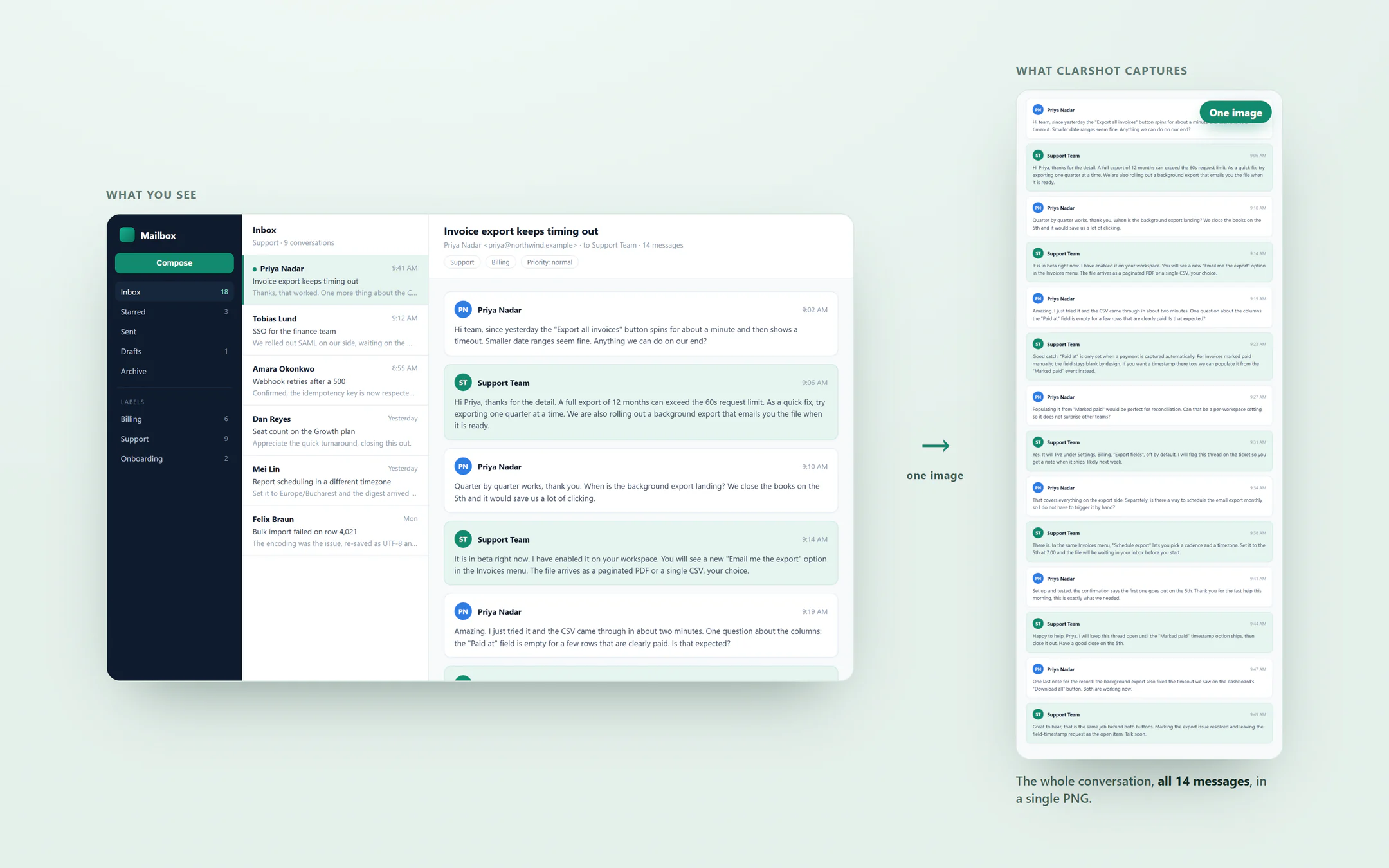
Full-page tools capture the page, not a panel that scrolls inside it, so a chat, an inbox or a long table stops at the edge of its box. Use a tool that scrolls that panel and joins the parts, such as ClarShot's Scrolling area, or take several screenshots and join them yourself.
On a phone? The ClarShot steps below are for a computer: ClarShot runs in Chrome and Edge on Windows, Mac, Linux and ChromeOS.
Why a full-page screenshot misses it
Many web apps do not scroll as a whole page. The page stays put, and a box inside it scrolls: the message list of a chat, the reading pane of an inbox, a feed, or a long table in a dashboard. Full-page tools scroll the page, so they capture that box only as far as you can see it. The rest of the conversation is cut off at the edge of the box, however long the page is.
Without installing anything
Take several screenshots and join them
Scroll the panel a screen at a time and take a screenshot each time, with a little overlap. Then place the images one under the other in any image editor and trim the overlaps. It works everywhere, but it takes a while, and it is easy to skip or repeat a line.
Look for a print or export option in the app
Some apps can print a conversation or export it as a PDF, and that version shows every message. Where it exists, it is often the cleanest way to get the text, though it rarely looks like what you see on screen.
For developers: let the panel grow
In DevTools, you can select the scrolling box and remove its height limit, for example by setting its height to auto and its overflow to visible. The page then grows to show everything, and the DevTools full-page screenshot captures it. This works on some apps and breaks the layout of others.
With ClarShot
ClarShot has a capture mode for exactly this case, called Scrolling area. It scrolls the panel for you and stitches it into one image, on your device.
- Open the app and the conversation, feed or table you want.
- Click the ClarShot icon in the toolbar and choose the Scroll tile (Scrolling area). If you do not see it, click the puzzle piece (Extensions) next to the address bar and pin ClarShot.
- Pick the panel that scrolls. ClarShot scrolls it and joins the parts into one image.
- The whole panel opens in the editor as one tall image. Cover names and addresses with Solid if you are going to share it.
- Download it as PNG, JPEG or WebP, or as a PDF split into A4 or Letter pages if it is very long.
Scrolling area is free in ClarShot, with no watermark. The capture stays on your computer: ClarShot makes no network requests.
Tips
Load older messages first
Many chats load older messages only when you scroll up. Scroll up through the part you need first, so those messages are loaded before you capture.
A very long thread
A tall image is hard to read in a chat app, which may shrink it. Send it as a document, or export it as a PDF with pages, so it keeps its full size.
Only part of the thread
If you only need what is on screen, a selected area is quicker: Alt Shift D in ClarShot, then drag over the messages that matter.
Vivaldi, Arc and most other browsers are built on Chrome, so the Chrome version works there too.
Add to ChromeClarShot works in Chrome and Edge on a computer, not on phones. Send yourself the link and open it there.
Related guides
- How to take a full-page screenshot in Microsoft EdgeCapture a whole web page in Microsoft Edge as one image: the built-in tool, where it falls short, and how ClarShot handles the rest, on your device.
- How to hide private information in a screenshot, and why blur is not enoughBlur and pixelation can be reversed. How to cover names, emails and numbers in a screenshot so nothing can be recovered, with a live demo you can try.